Setting up alerts
Configure speed, geofence, ignition and event alerts in the TTC platform — with email, push and WhatsApp notifications. Step-by-step.
Turn raw tracking into proactive notifications
A live map shows you where every vehicle is, right now. Alerts are how you stop having to watch the map. The platform watches it for you and notifies you only when something matters — a vehicle that breaks the speed limit, a yard exit at 02:00, a power cut on a hardwired device.
Alerts can fire on speed, geofence entry / exit, ignition, power, harsh driving, idling and a handful of other events. Each alert can be scoped to specific vehicles, specific zones and specific time windows, and notifications can land via sound, app push, email or WhatsApp.
Common alert setups
- →Overspeed alert — get notified if a driver exceeds 100 / 120 km/h.
- →After-hours yard exit — get an alert if a vehicle leaves the depot outside working hours.
- →Power-cut alert — fire the moment a hardwired tracker loses power, often the first signal of tampering.
- →Customer-site arrival — get notified when a driver arrives on a customer\'s premises.
- →Excessive idling — flag vehicles parked-but-running, a common fuel waste source.
Create your first alert
- 01
Open Alerts from the Tools menu
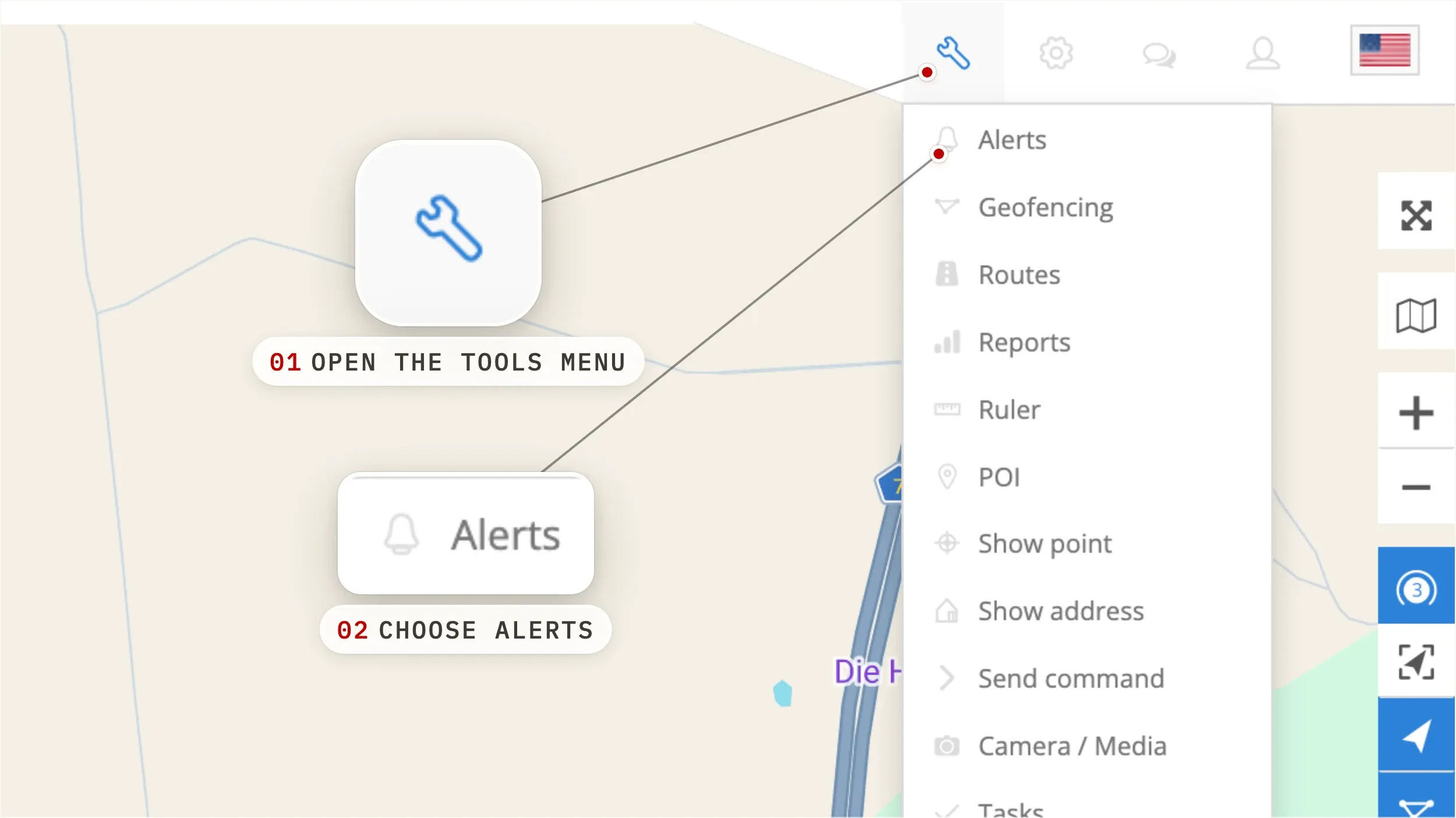
On the main map, click the Tools menu (1) and choose Alerts (2). The Alerts panel opens, listing every alert already on your account.
- 02
Add a new alert
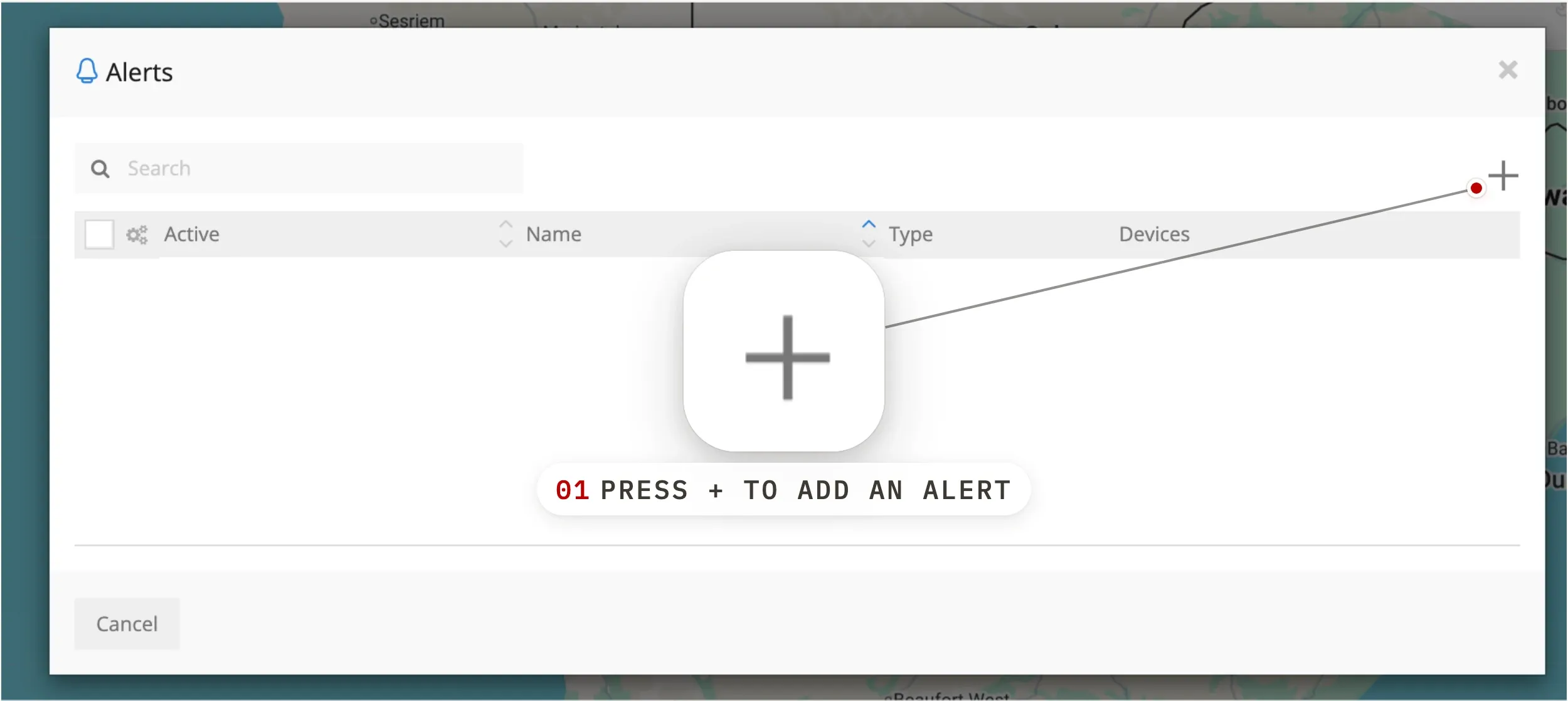
In the top-right of the Alerts panel, click the + button to add a new alert. A setup panel opens where you name and configure it. First time? The list will read No alerts until you create your first one.
- 03
Name the alert and pick devices
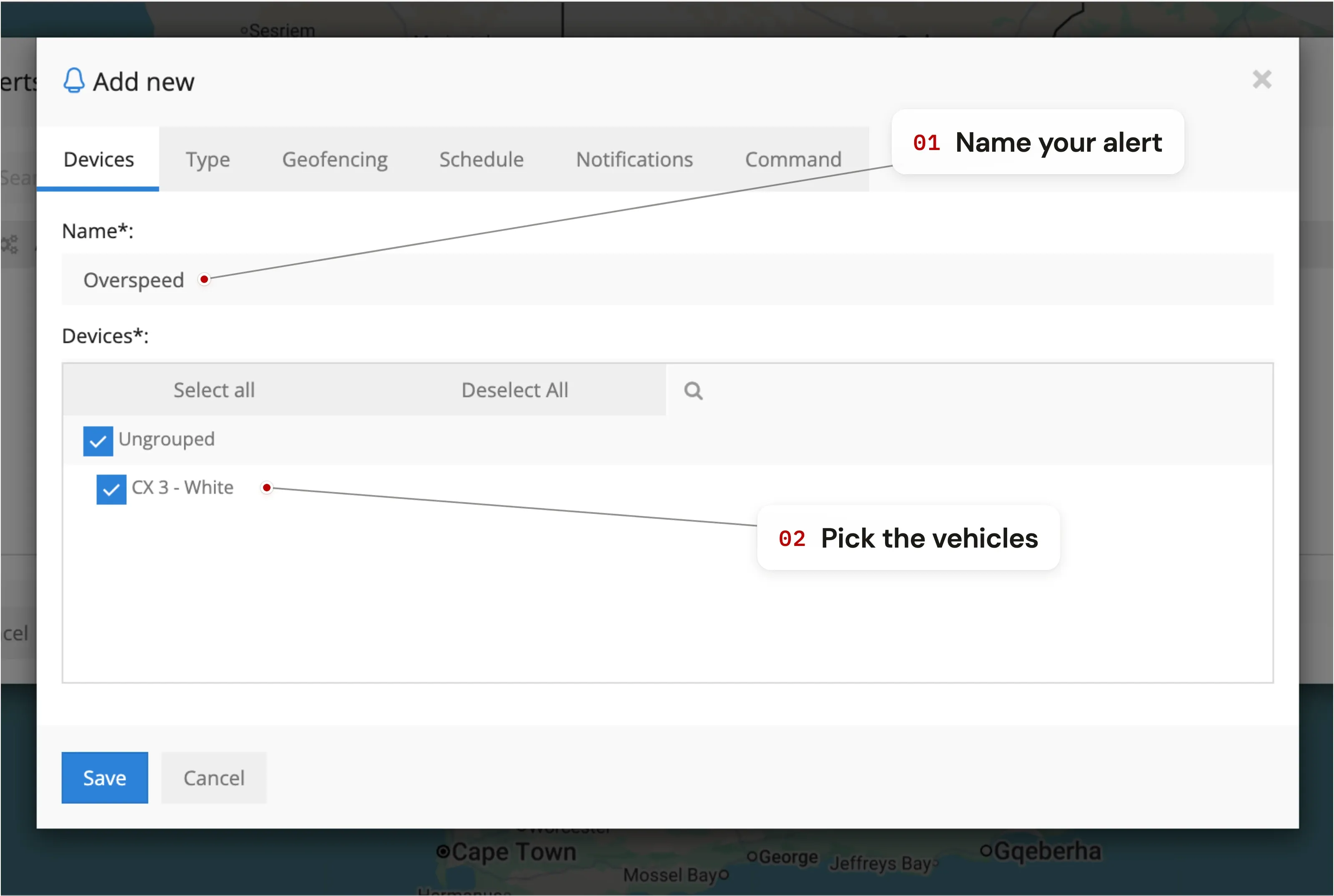
Give the alert a short, recognisable name — Overspeed (above 100), After-hours yard exit, Ignition on outside hours. Then choose which devices it applies to. You can include a single vehicle, a group, or every vehicle on your account. Same alert, applied to as many vehicles as you need.
- 04
Choose an alert type
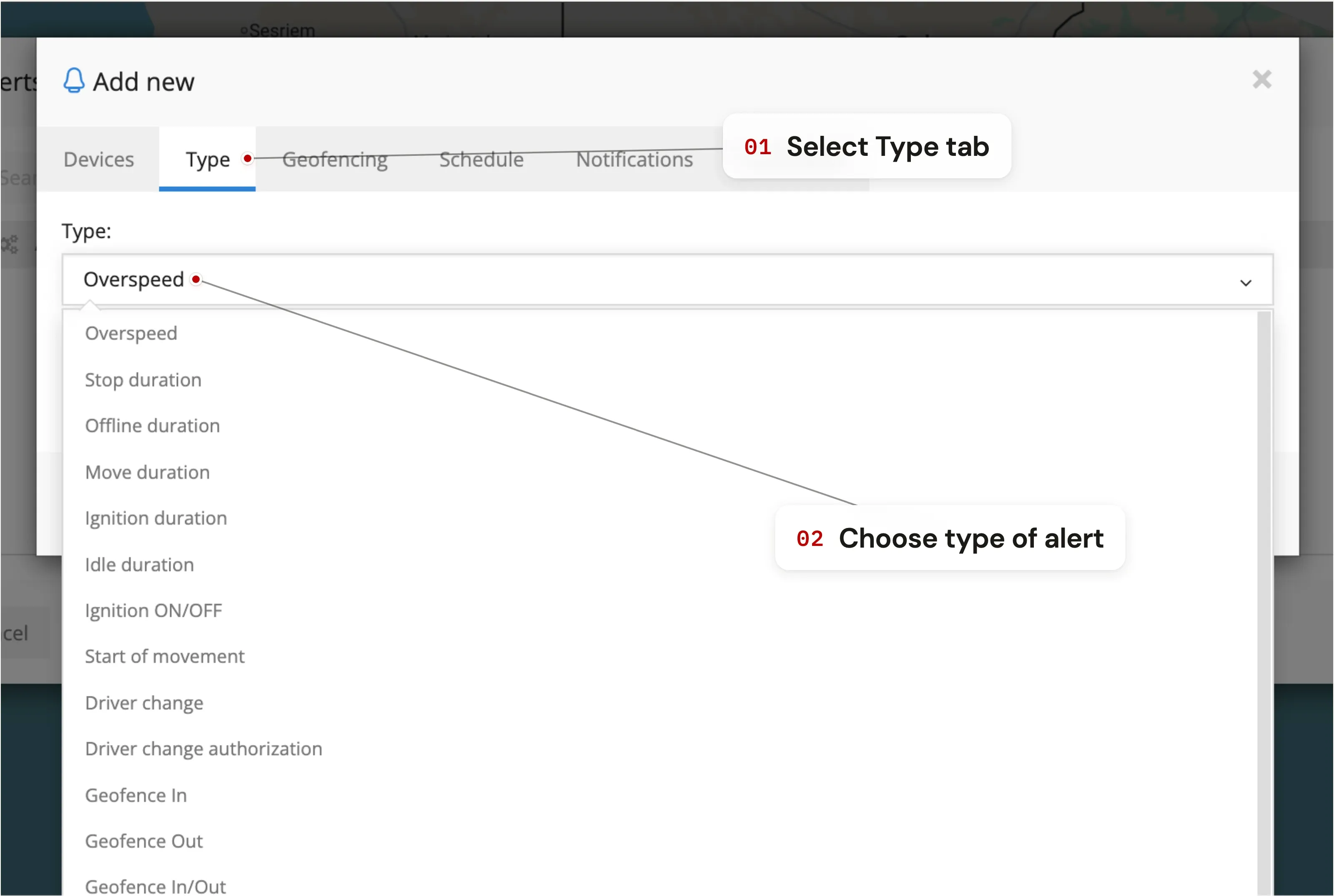
Open the Type tab and pick what triggers the alert. The common options are:
- Overspeed — fires when a vehicle exceeds a set speed (you choose the limit).
- Geofence in / out — fires when a vehicle enters or leaves a geofence you've drawn.
- Ignition on / off — fires when the vehicle is started or stopped.
- Power cut — fires if the device loses power (a common theft signal on hardwired units).
- Harsh driving — fires on sharp braking, aggressive acceleration or hard cornering (device-dependent).
- Idling — fires when a vehicle has been stationary with the engine running for longer than a threshold you set.
Each alert type has its own settings to fill in — an Overspeed alert, for example, needs a speed threshold. Set these to suit your preferences, and contact support if you need a hand.
- 05
Link to geofences (optional)
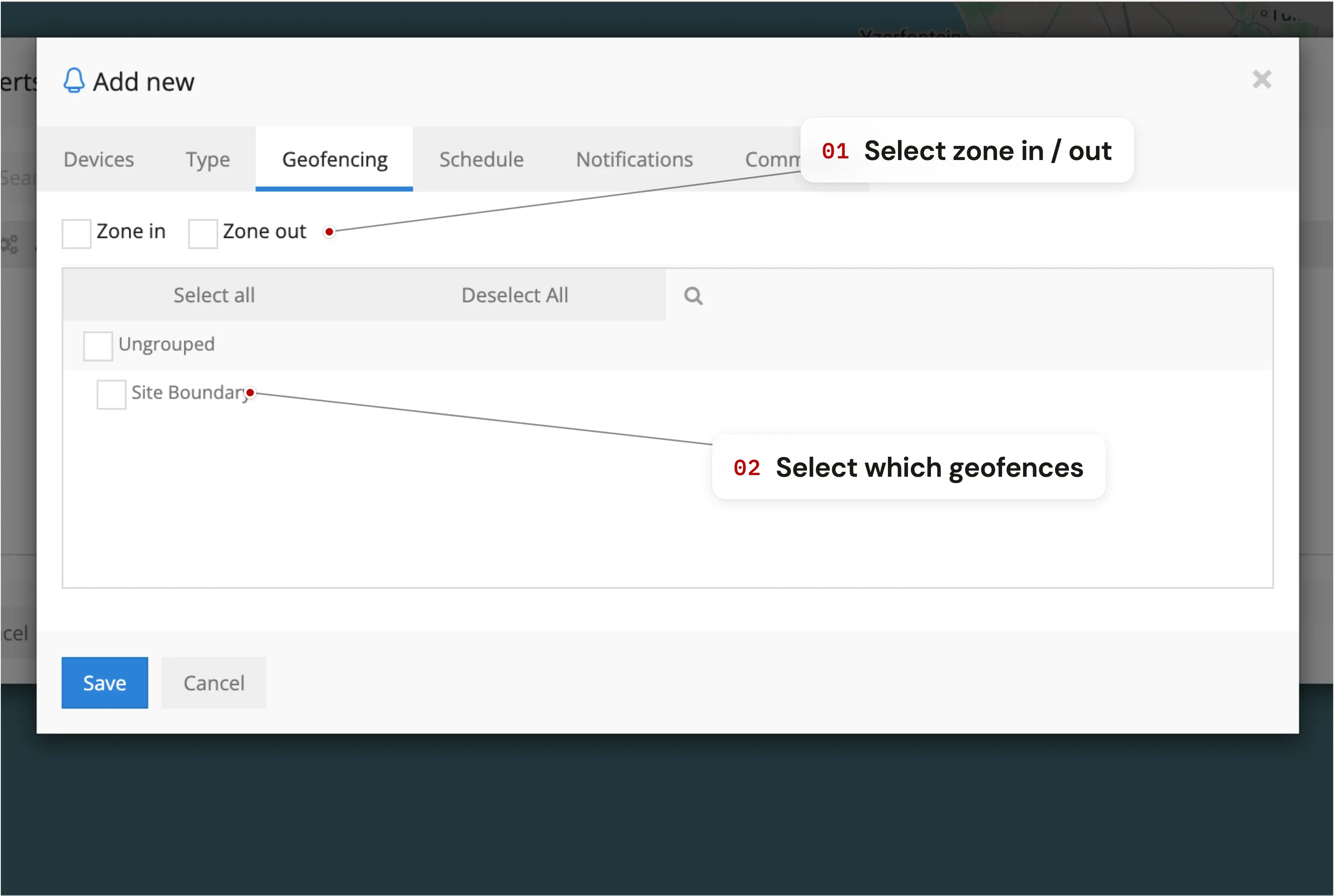
In the Geofencing tab, you can scope an alert to specific zones. Tick zone in to only fire while inside the zone, or zone out for outside. This is how you build compound rules like over 60 km/h, but only inside the depot. Leave it blank if the alert should fire everywhere.
- 06
Set a schedule (optional)
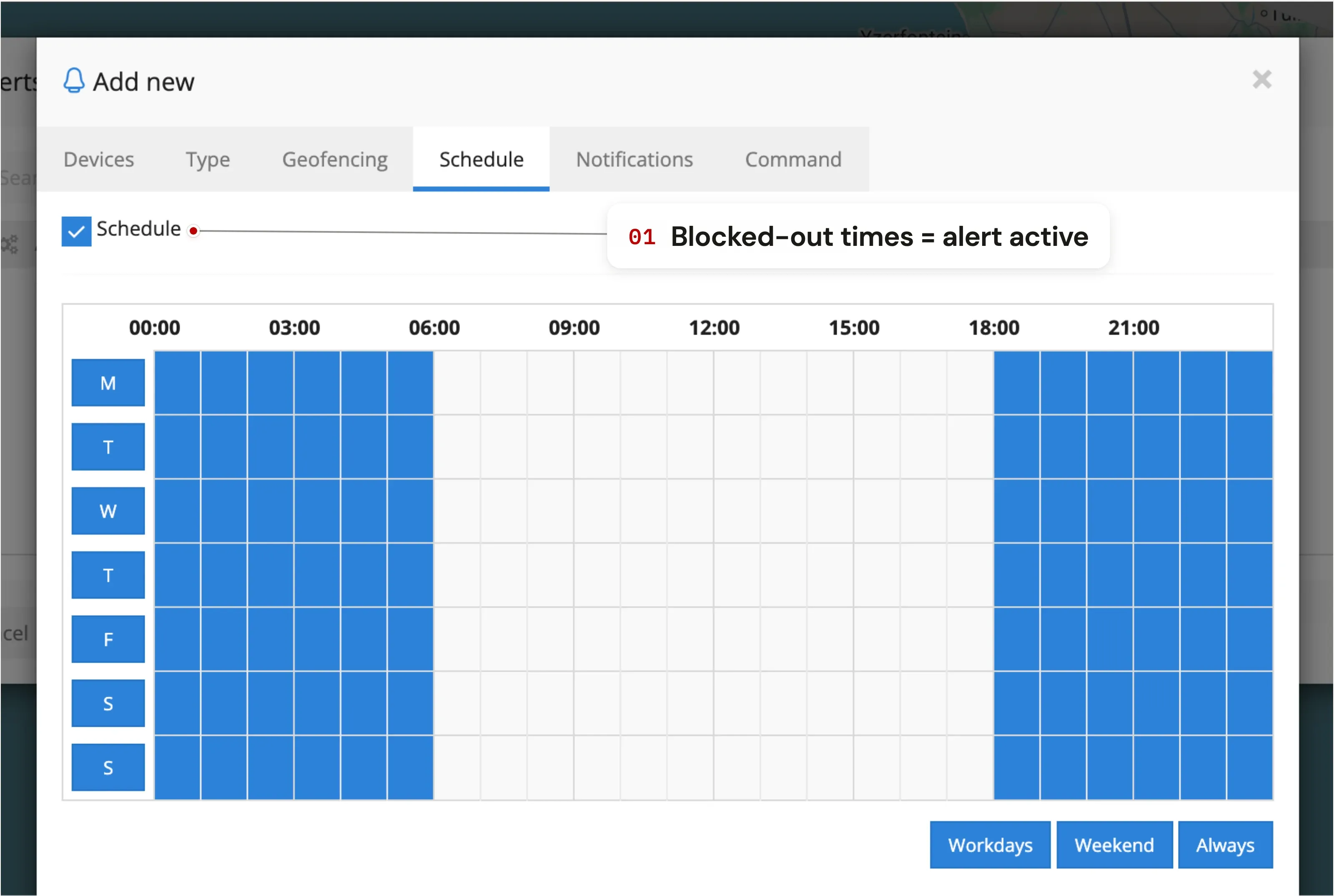
Open the Schedule tab and switch Schedule on. Then fill in the time grid — the slots you block out are exactly when the alert is active. In the example here it fires after-hours only, 18:00–06:00. Use the Workdays, Weekend and Always shortcuts for common patterns, or leave Schedule off for round-the-clock cover.
The schedule reads the opposite way to most: the blocks you fill in are when the alert is on, not when it's muted.
- 07
Pick how you want to be notified
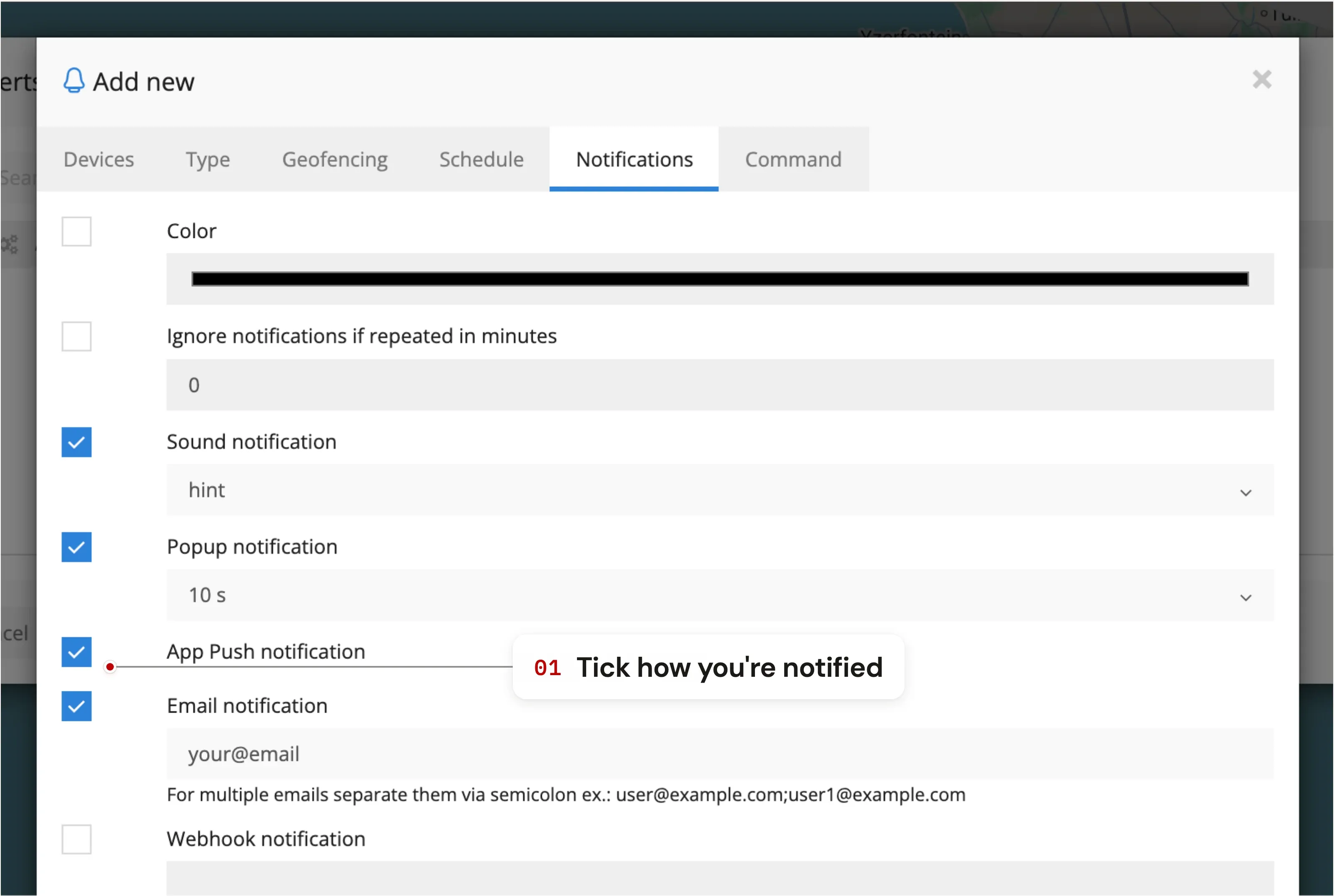
In Notifications, choose the channels that suit you:
- Sound — plays a sound when the alert fires in the browser.
- App push — fires on the TTC mobile app. Sign in on your phone and allow notifications.
- Email — sends an email to the address you enter. Add as many recipients as you need.
- WhatsApp — available on request. Contact TTC support to enable.
- 08
Send a command on trigger (optional)
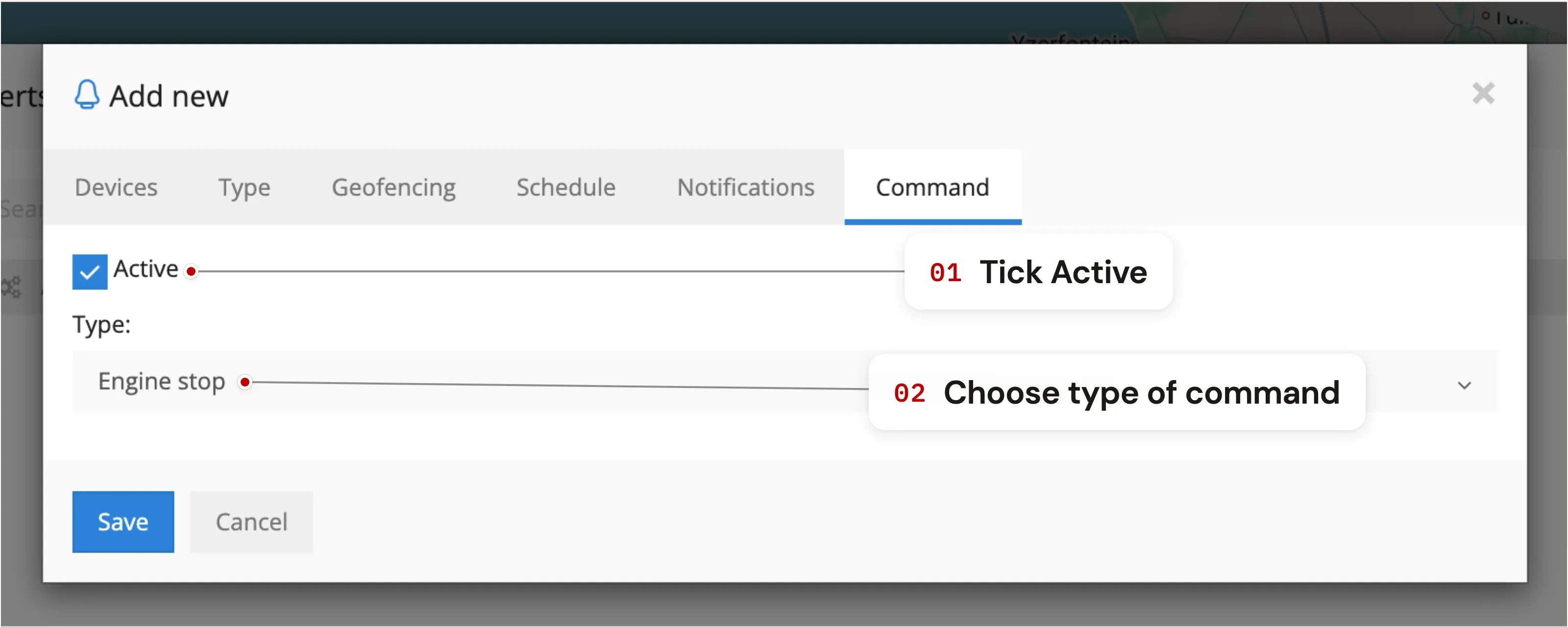
Some alerts can send a command back to the device when they fire — most commonly cutting the engine via an optional cut-off relay. Pick the command under the Command tab and tick Active to arm it.
The engine on / off command only works if a cut-off relay is installed, and exactly what it does depends on how that relay is wired. Don't enable it unless you're sure what will happen — contact us first if you're not.
- 09
Save the alert
To save your alert settings, hit the blue Save button at the bottom of any tab. If any mandatory settings haven't been filled in, you'll be prompted to complete them first. If you leave the page without hitting Save, your alert won't be saved.
Look for this at the bottom of every tab.
Keeping alerts useful, not noisy
- Start with a few alerts, not twenty. You'll want more than one or two, but a focused handful beats a wall of noise. The ones below are a solid starting set.
- Keep the power-cut alert on. It's on by default, and it's the one you can't afford to miss — it fires the moment a tracker loses power, often the first sign the device has been disconnected or tampered with.
- Add geofence in / out. Getting told when a vehicle enters or leaves a site — your yard, a depot, a customer's premises — answers a lot of everyday questions on its own.
- Try a scheduled movement alert. Pair a movement alert with a schedule so it only fires after hours — an unexpected weekend trip or a yard exit at 2am lands straight in your inbox. Not sure what a particular alert means? See vehicle tracker alerts explained.
Alerts questions
What kinds of alerts can the TTC platform send?
The platform supports speed, geofence entry / exit, ignition on / off, power cut, harsh driving, idling, and event-based alerts. Most alerts can be scoped to specific vehicles, specific geofences, and specific time windows — so you can build compound rules like "overspeed above 100 km/h, but only on weekdays between 18:00 and 06:00".
How do I get push notifications on my phone?
Download the TTC mobile app, sign in with your platform credentials, and allow notifications in your phone's settings. Then tick "App push notifications" inside the alert's notification tab. Alerts fire on the device they're configured for — the same alert can also email a manager and ping a phone at the same time.
Can I get alerts on WhatsApp?
Yes. WhatsApp notifications are available on request — contact TTC support to enable them on your account. Once enabled, WhatsApp becomes another tick-box option alongside email and push inside the alert configuration.
Can I send a command to a vehicle when an alert fires?
Yes, with caveats. Some alerts can trigger a command back to the device — most commonly cutting the engine via the optional engine-cutoff relay on supported devices (4G900L, FMC920 and FMB140). Setup is hardware-specific; we recommend talking to TTC support before configuring a command-on-trigger alert to make sure the device and rule are a safe pairing.
Is there a limit on how many alerts I can create?
No. Create as many alerts as you need, across as many vehicles as you have. Alerts are included in every TTC subscription from R50 / month — there's no extra fee per alert and no "alerts pack" tier. Same applies to alert recipients: add as many email addresses as you need.
Will the alert fire retroactively if I configure it after the fact?
No. Alerts fire forward — from the moment they're saved. To analyse historic events, use the reports system instead, which can show overspeed cases, geofence entries / exits, harsh driving events and other history filtered to any date range within the last 90 days.