Creating geofences & zone alerts
Draw a boundary on the map and get notified the moment a vehicle enters or leaves. Step-by-step, in the TTC platform.
Turn locations into rules
A geofence is a digital outline of a real location — a yard, a customer site, a school, a no-go area. The platform watches whether each vehicle is inside or outside the zone and can trigger an alert the moment that changes. It\'s the difference between a live map you have to watch and a tracking platform that watches itself and only notifies you when something matters.
Setting up geofencing in the TTC platform is two steps: draw the zone, then wire it into an alert. We\'ll walk through both below.
Common geofencing setups
- →Customer-site arrival alerts — get a push the moment your driver arrives on-site, no "are you there yet?" calls.
- →Yard departures — log when a vehicle leaves the depot each morning for an automatic timesheet.
- →After-hours movement — get alerted if a vehicle leaves home base outside working hours.
- →No-go zones — be notified if a vehicle crosses into a restricted area.
- →Geofence-filtered reports — pull a report of how much time was spent inside a specific customer site this month.
Create a geofence and link it to an alert
- 01
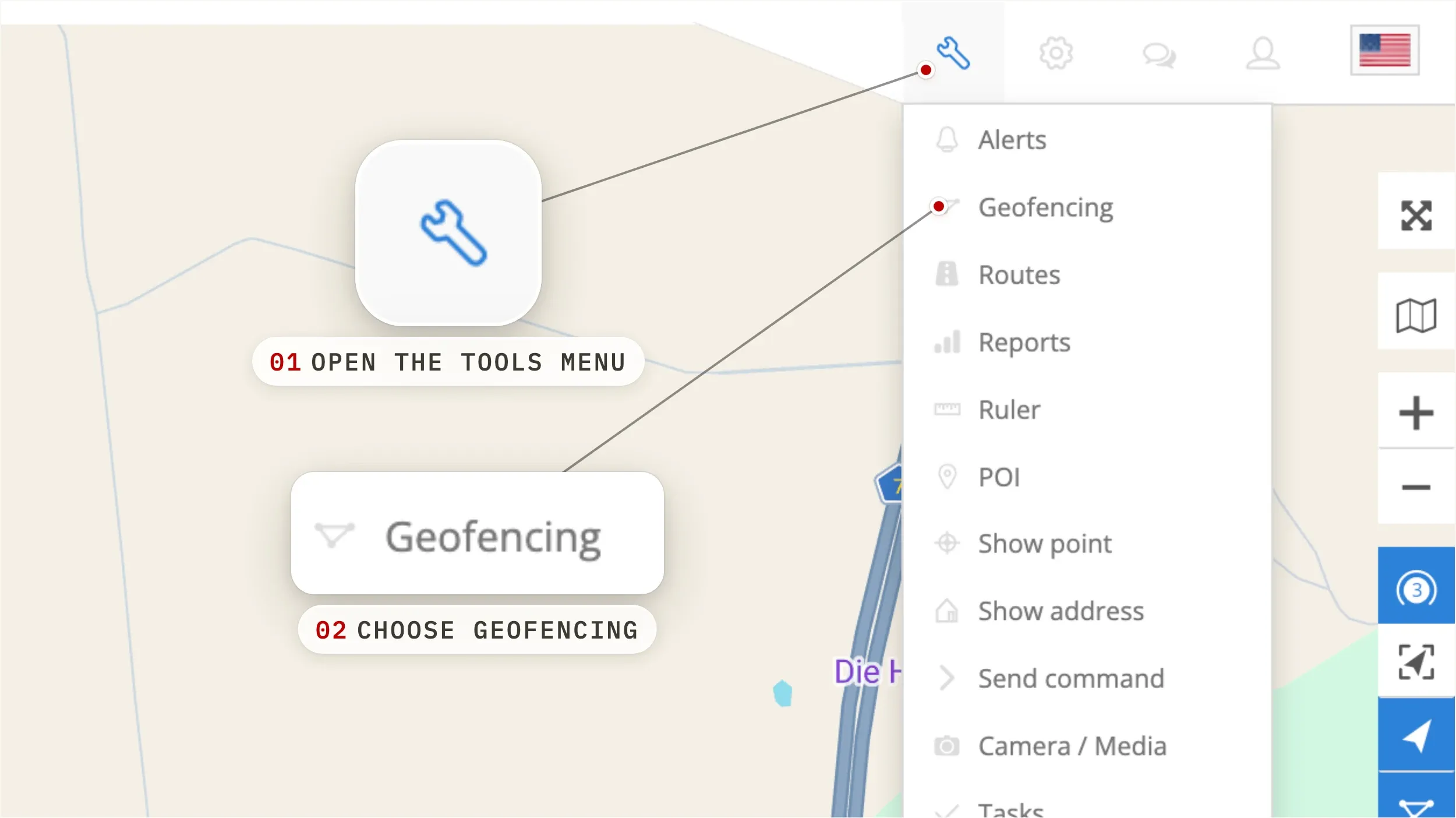
Open Geofencing from the Tools menu
On the main map, click the Tools menu and choose Geofencing. A panel opens with every geofence already on your account. Empty list? You're about to create the first one.
- 02
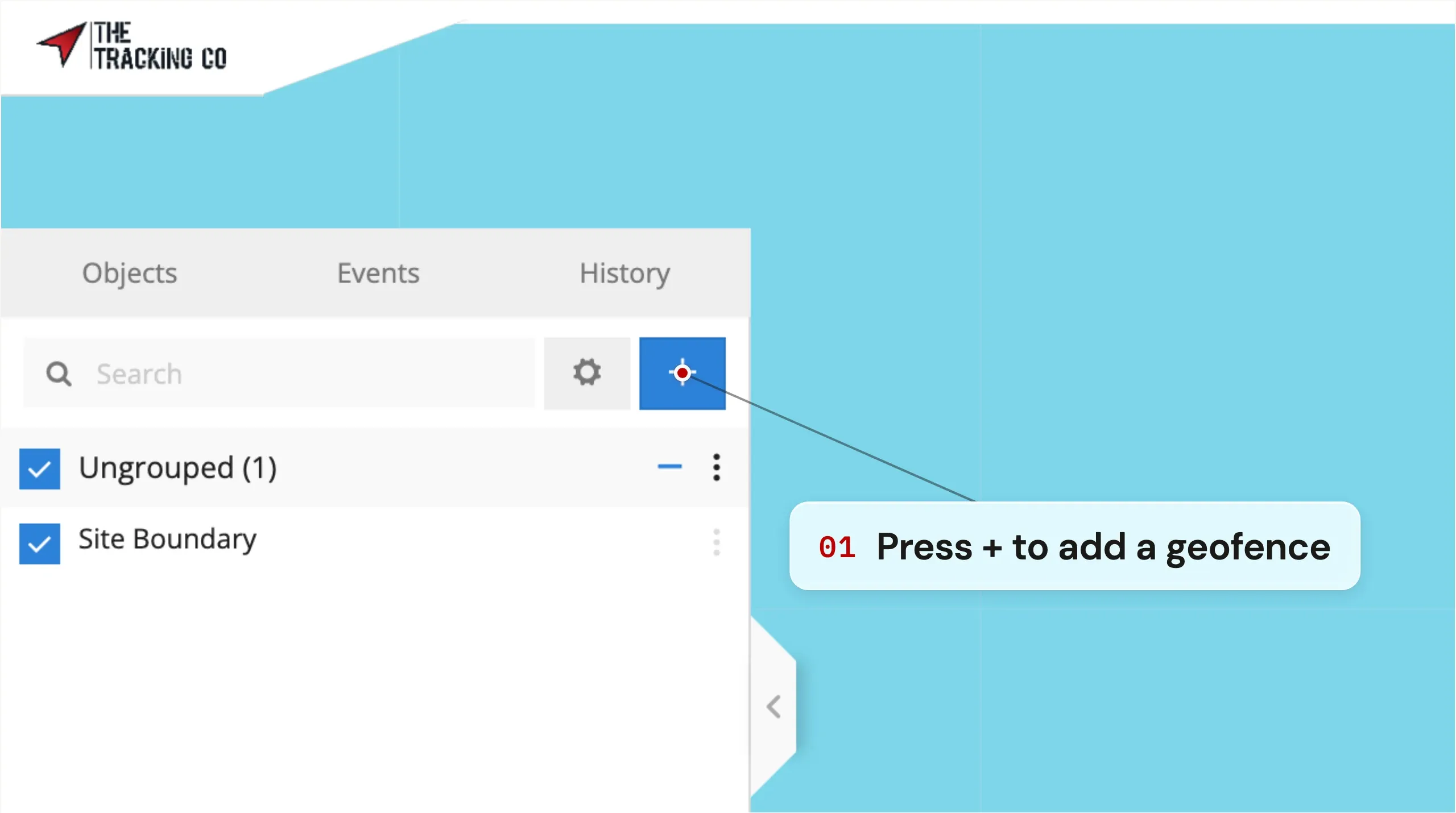
Click the blue + button to add a geofence
In the Geofencing panel, click the blue + button at the top. The map enters drawing mode and the panel switches to the new-geofence form.
- 03
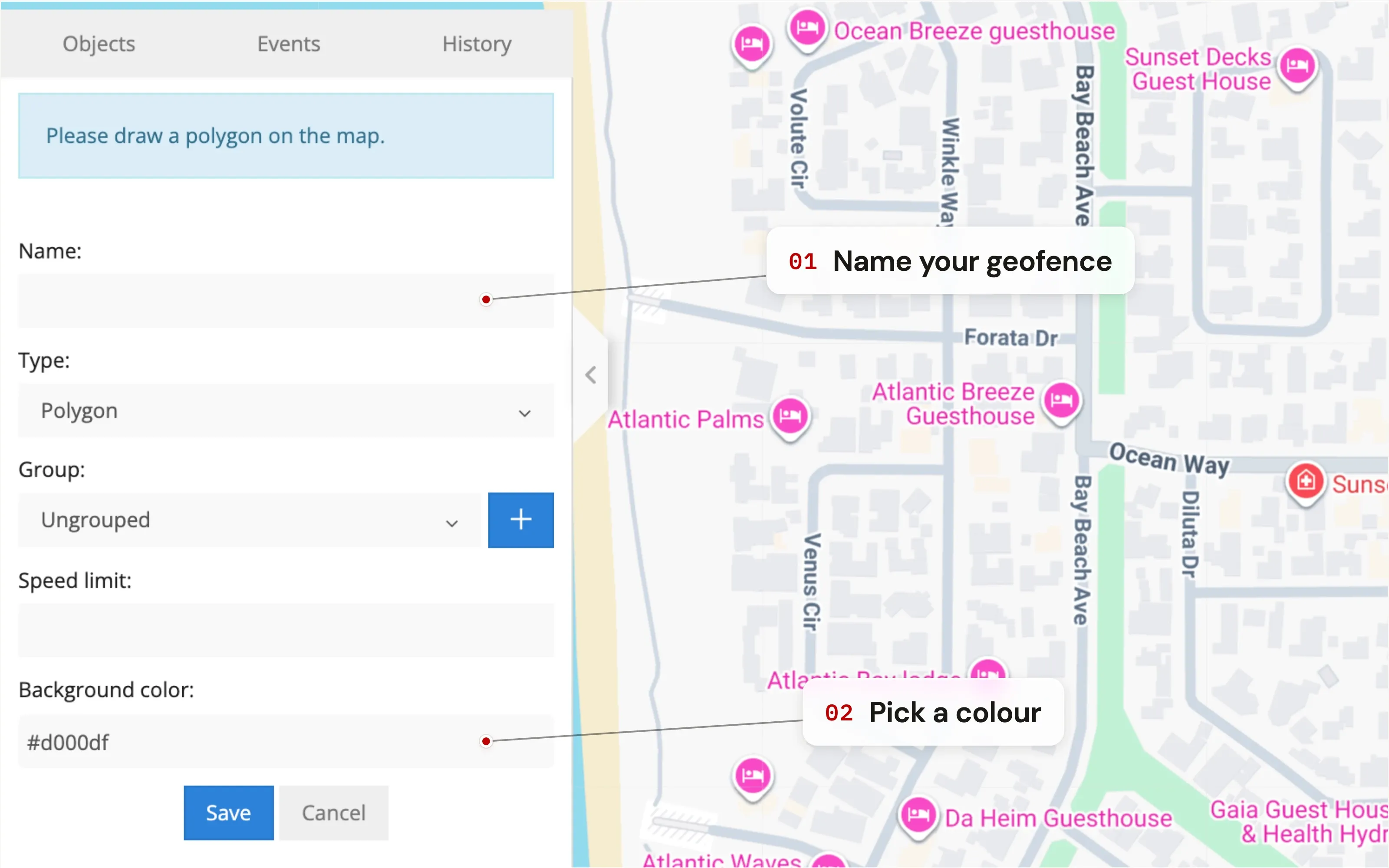
Name your geofence and pick a colour
Give the geofence a name you'll recognise on the map — Yard, Site A, Customer X, School. Pick a colour so it stands out from other zones. Names and colours show up in alerts, reports, and on the live map.
- 04
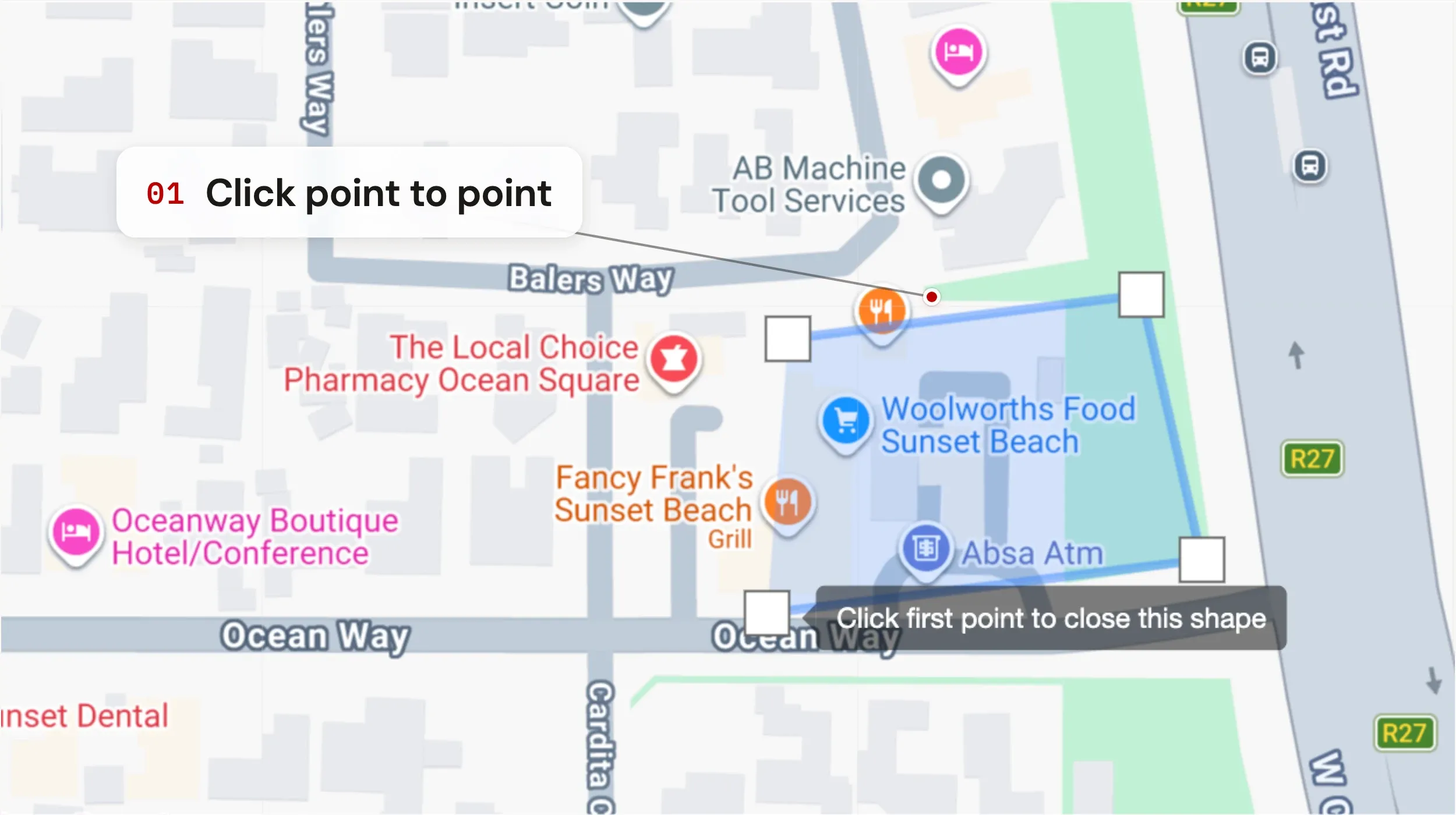
Draw the zone on the map
Click on the map to place the first corner of your geofence. Each subsequent click adds another point. Build the outline of the zone — a yard, a customer site, a no-go area, a school catchment — corner by corner. Close the shape by clicking the first point you placed. The zone fills with your chosen colour.
- 05
Save the geofence
Hit the blue Save button to create the geofence. It now appears in your list and on the live map, ready to be wired into an alert or used as a filter inside reports — but on its own, a geofence just sits there. It won't notify you of anything until you attach an alert to it.
Look for this at the bottom of the geofence form. - 06
Wire the geofence to an alert
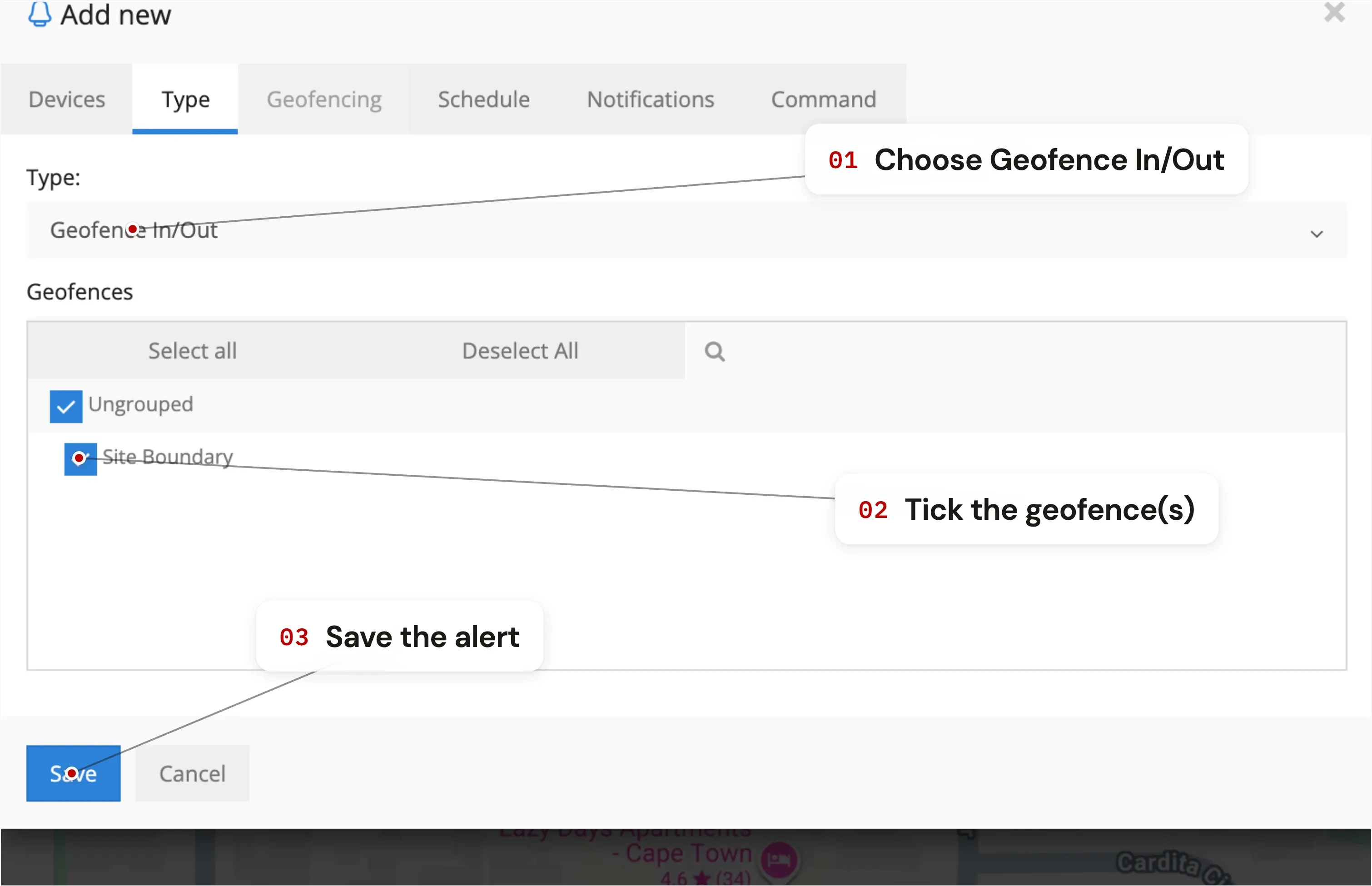
To get notified when a vehicle enters or leaves the zone, go to Tools → Alerts and create a new alert. In the alert's Type tab, choose Geofence In / Out and tick the geofence(s) you want included. Pick how you want to be notified — app push, email, or WhatsApp — and save.
Getting the most out of geofences
- Keep zones tight to the real boundary. A geofence drawn too wide will fire entry alerts before a vehicle is actually on-site, and exit alerts after it has already left.
- Use colour as a category. All customer sites one colour, all no-go zones another. Glanceable on the map.
- Combine geofences with speed limits. An alert can require inside Zone X AND moving over 60 km/h — useful for sites where you want to enforce a yard speed limit.
- Geofences are reusable. One zone can drive multiple alerts: entry, exit, after-hours entry, weekday-only entry — all from the same drawn shape.
Geofencing questions
What is geofencing in vehicle tracking?
Geofencing is a digital boundary drawn around a real location on a map — a yard, a customer site, a school, a no-go area. The tracking platform watches whether your vehicles are inside or outside each zone and can trigger alerts the moment they cross the boundary. It's how you turn a live map into something that notifies you instead of needing to be watched.
How many geofences can I create?
There's no limit on the TTC platform. Create one per customer site, one per no-go area, one for the home depot — as many as you need. Geofences can also be grouped and filtered, and a single geofence can drive multiple alerts (entry, exit, after-hours, etc.) so you don't need to redraw the same zone for different rules.
Will a geofence on its own send me alerts?
No — drawing the geofence sets the boundary, but you still need to create an alert and link it to the geofence to get notified. The two-step setup is intentional: it lets one zone power many different rules (entry alert, exit alert, after-hours alert, speed-inside-zone alert) without re-drawing the boundary.
How accurate is geofence detection?
Geofence triggers run off the same GPS position used for live tracking — typically accurate to within five to ten metres in open environments. In dense urban settings or underground parking, GPS accuracy drops; we recommend drawing zones slightly inside the real boundary in those areas to avoid false-positive entry alerts when a vehicle is parked nearby but not actually inside.
Can I be alerted via WhatsApp when a geofence is triggered?
Yes. App push and email notifications are configured directly in the alert. WhatsApp notifications are available too — contact TTC support to enable them on your account.
Is geofencing included in the price?
Yes. Geofencing, unlimited zones, geofence-based alerts and geofence-filtered reports are all included in your TTC subscription from R50 / month. There are no separate "fleet" or "geofencing" tiers — the full platform is on every plan.