SARS-compliant vehicle logbooks
How to use the TTC tracking platform to auto-classify business and private trips for company vehicles, then export a SARS-ready travel sheet straight from your tracking data.
A vehicle logbook, generated automatically
If you claim a travel allowance or use a vehicle for business, SARS wants to see a logbook: opening and closing odometer readings, business kilometres, and a record of each business trip. The TTC tracking platform builds most of that for you — every trip is logged with a date, time, start and end address, distance and trip type. All you do is generate the report.
The platform classifies trips automatically based on time of day, and you correct anything that doesn\'t match real life. The end result is a travel-sheet report you can hand to your accountant or attach to your tax submission, in PDF or Excel format.
Who needs a tracking-based logbook
- →Travel allowance earners who need to substantiate business kilometres for their annual SARS submission.
- →Company-vehicle users tracking business vs private use for fringe-benefit calculations.
- →Sole proprietors and freelancers claiming a portion of their vehicle costs against business income.
- →Small-fleet owners who need a monthly travel record per vehicle for the books.
- →Anyone who hates writing in a paper logbook and would rather the platform did it for them.
Set up your logbook in the platform
- 01
Understand how auto-classification works
Every trip your tracker records is classified by the platform on the way in. The default rule is straightforward: any trip that starts between 08:00 and 17:00 on a weekday is tagged as a business trip. Anything outside those hours — early mornings, evenings, weekends and public holidays — is tagged private. You only need to step in for the exceptions: a business trip on a Saturday, a quick personal errand on a Wednesday morning, the school run between meetings.
- 02
Open the vehicle and find Route types
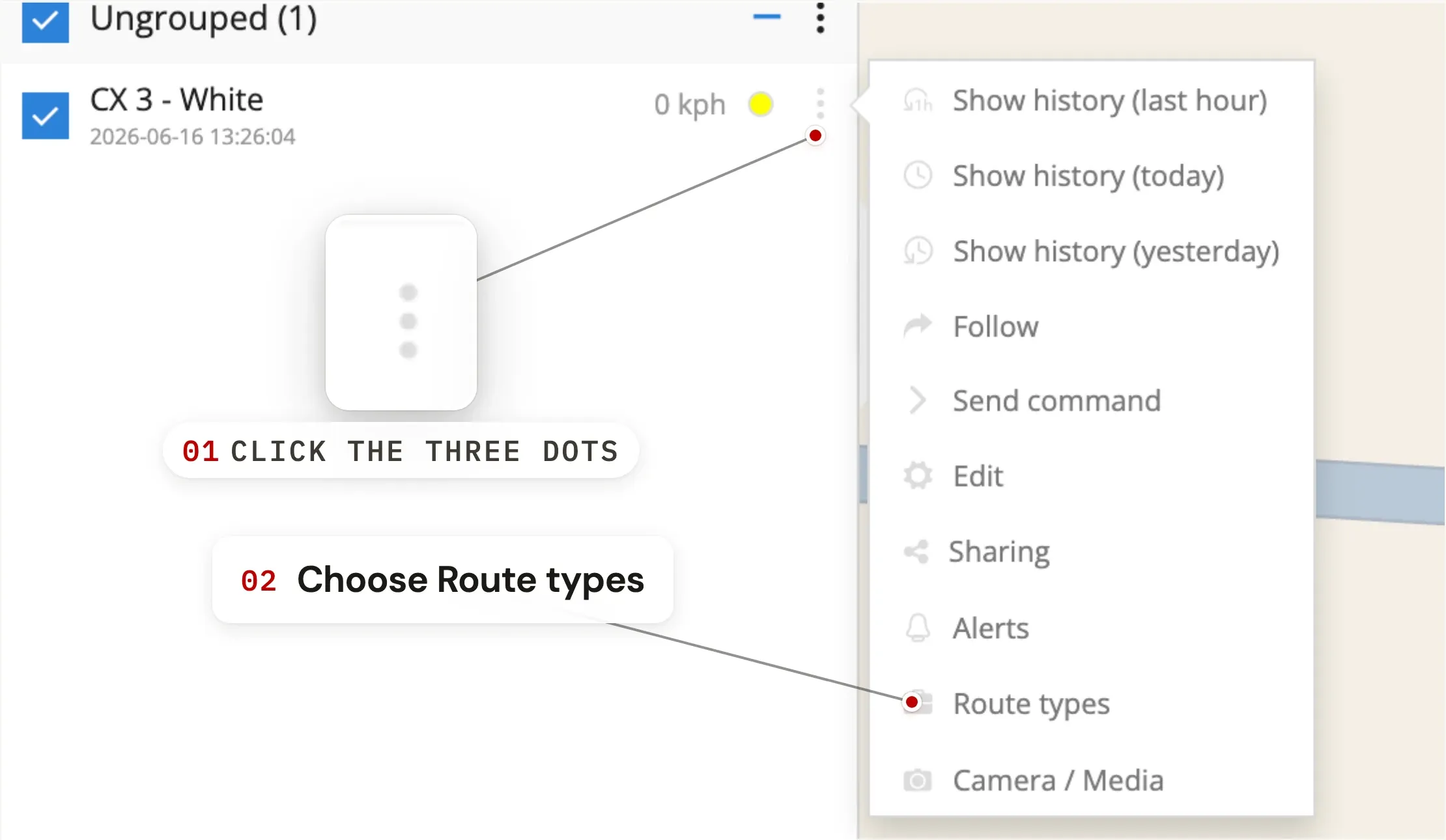
On the main map, locate the vehicle whose trip you want to re-classify and click the three dots (⋯) next to its name. In the menu that opens, choose Route types. A panel slides in showing every manual override that already exists on that vehicle.
- 03
Add a new route-type entry
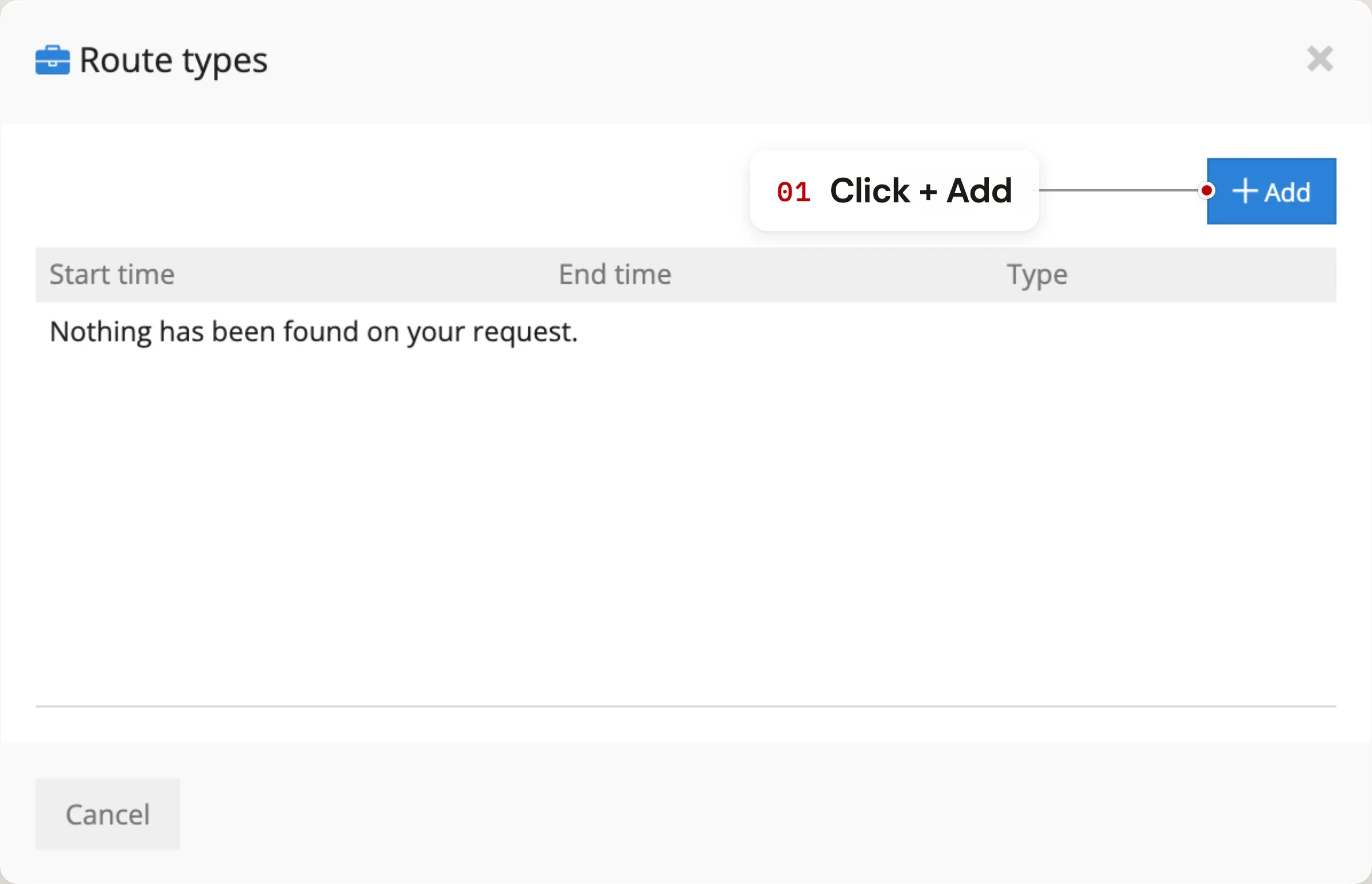
Click Add at the top of the panel. A new form appears with two fields: Type and the time window the override applies to. Adding an entry tells the platform: "for this window, override the default classification with whatever I choose here."
- 04
Pick Business or Private
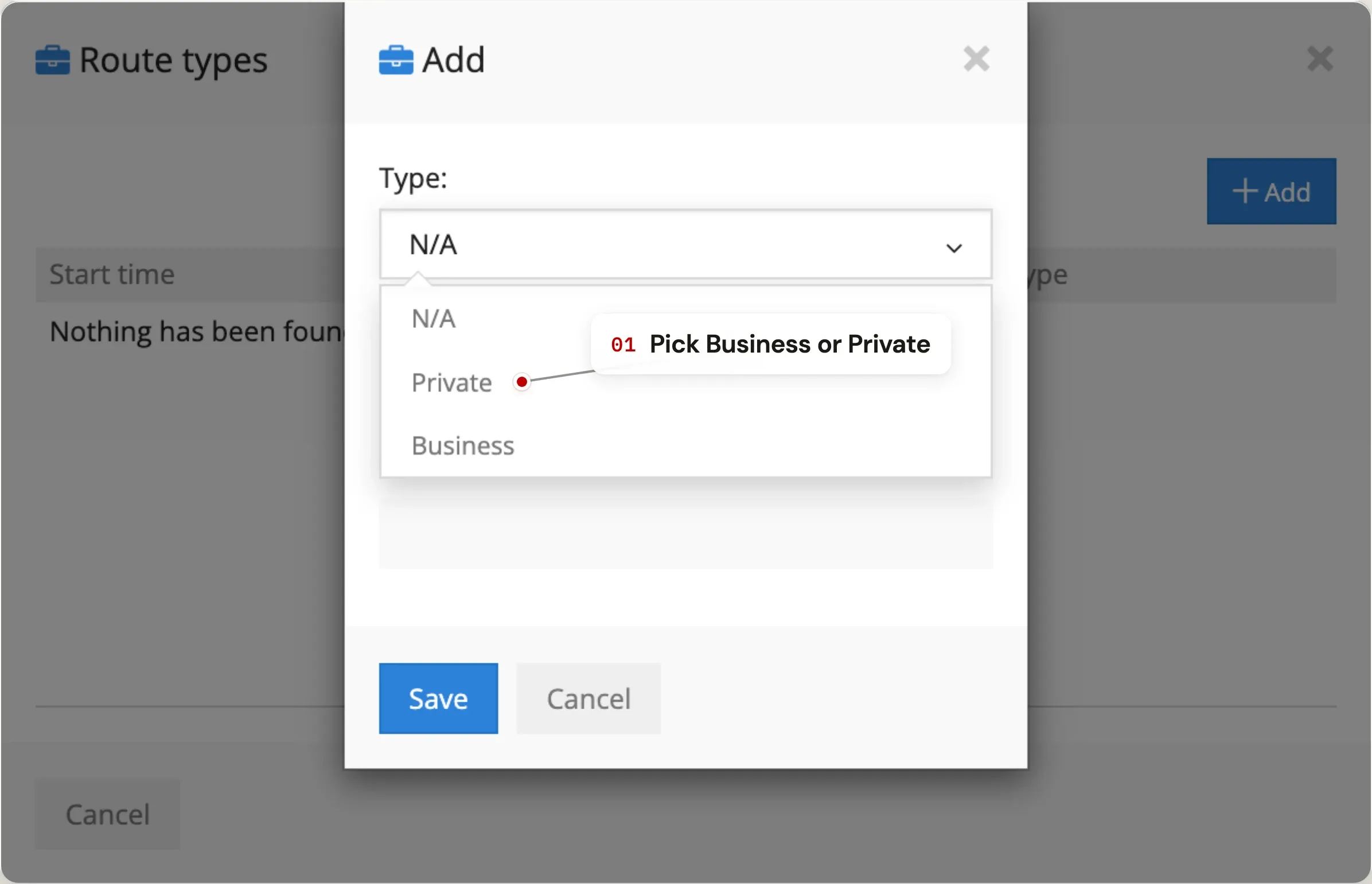
Open the Type dropdown and choose Business or Private — whichever the trip really was. This is the classification the platform applies to every trip that falls inside the time window you set next.
- 05
Set the time window
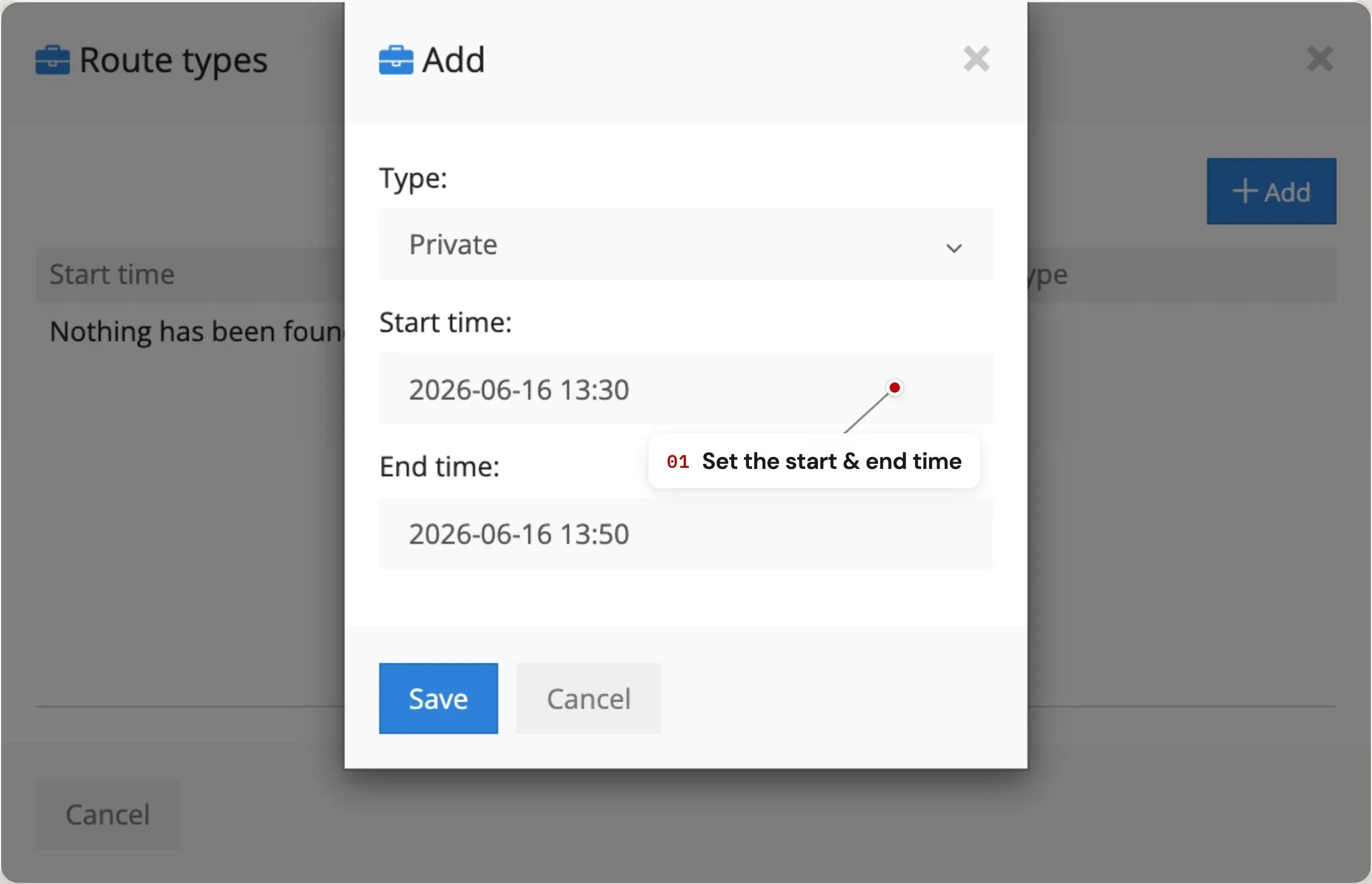
Set the start and end time of the override. Be specific — if you ran a private errand from 13:30 to 13:50, set those exact times. The override only applies to trips that fall inside the window you defined.
- 06
Save and repeat as needed
Click Save. The override appears in the list immediately and any trips inside that window get re-classified retroactively. You can add as many overrides as you like — past, present and future. There's no limit and you can edit or delete any of them at any time.
Look for this at the bottom of the Add panel. - 07
Pull a travel-sheet report
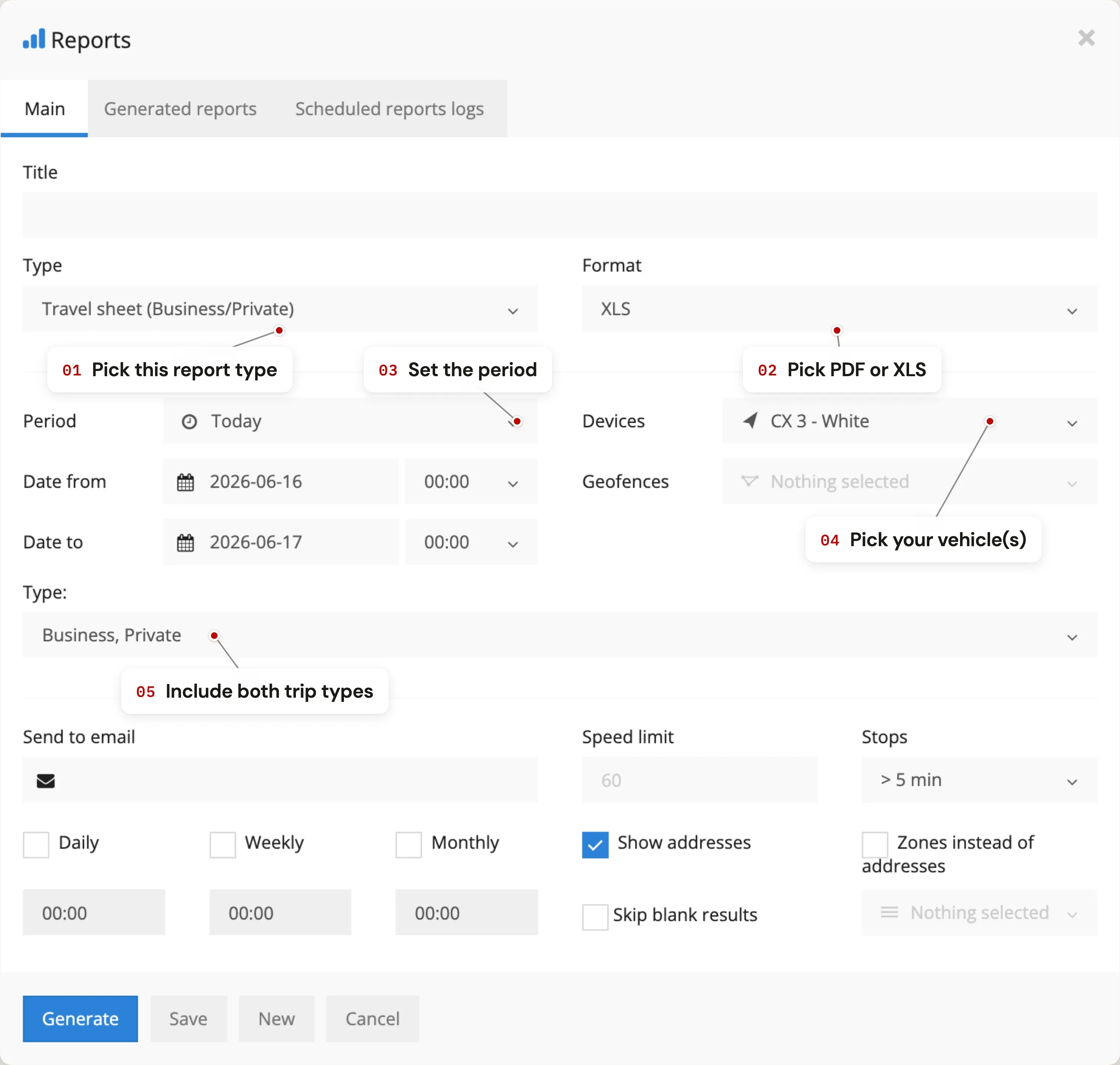
Once your trips are correctly classified, go to Tools → Reports and pick Travel sheet business/private as the report type. Choose the period (a tax year, a single month, a custom range), select your vehicle(s) and the format you want — PDF for a printable record, XLS if your accountant likes to work in Excel. You can also schedule the report to email itself monthly so a current logbook is always in your inbox.
A few things that make tax time easier
- Set your overrides as you go. Adding a single private errand once a week takes 30 seconds and saves an hour of back-fixing at tax time.
- Schedule the travel sheet monthly. Email it to yourself on the 1st of every month — you'll have 12 monthly sheets ready to compile at year-end.
- Keep the odometer reading separate. SARS asks for opening and closing odometer per tax year. The platform records distance per trip; cross-check it against the vehicle's actual odo at the start and end of the year.
- If you're ever audited, you have the raw data. Every trip has GPS coordinates, a route, a start address and an end address — supporting evidence behind any logbook line.
SARS logbook questions
Can a GPS tracker replace a manual SARS logbook?
A vehicle tracker generates the underlying data SARS wants in a logbook — date, start odometer reading, end odometer reading, kilometres travelled, business / private classification, and a note on the purpose where applicable. The TTC platform exports this as a travel-sheet report you can submit as your logbook. SARS accepts electronic logbooks; what matters is the accuracy and completeness of the record, not whether you wrote it down in a book by hand.
How does The Tracking Co decide what counts as a business trip?
The platform uses time of day as the default classifier: trips that start between 08:00 and 17:00 on weekdays are tagged business, everything else is private. This is the most common 9-to-5 working pattern in South Africa. If your work hours are different — a tradesman who starts at 06:00, a sales rep who works Saturdays — you log the exceptions manually using the Route types tool described above.
What information does a SARS-compliant logbook need?
SARS requires opening and closing odometer readings for each tax year, total kilometres travelled, total business kilometres, and a record of each business trip including the date, destination and reason for the trip. The TTC travel-sheet report shows the date, time, start and end address, distance and trip classification for every trip — covering most of what SARS needs. Add the year-opening and year-closing odo readings and a one-line purpose for each business trip, and you have a SARS-ready logbook.
Do I have to log every single private trip manually?
No — that's the point of the default rule. Anything outside 08:00-17:00 on a weekday is already tagged private automatically. You only override the platform when a trip's real type doesn't match the default — a business meeting on a Sunday, a school pickup at 14:00. Most people log fewer than five overrides a month.
Can I export my logbook in Excel for my accountant?
Yes. The travel-sheet report is available in PDF, HTML or XLS (Excel). Most accountants prefer the XLS export because they can sort, filter and total the columns. You can also schedule the report to email itself monthly or annually, with the export attached, so your accountant always has the latest record without asking.
Is the logbook feature an extra cost?
No. Route-type classification, travel-sheet reports, scheduled email exports and every other platform feature are included in your TTC subscription from R50 / month. There are no paywalled "fleet" or "tax" tiers — you get the full platform on every plan.